Why Your New Site Isn't Showing Up on Google: Causes in the Order Worth Checking
Website not showing up on Google? Check causes in order: noindex tags, robots.txt, orphan pages, JavaScript-only content and uncrawled URLs, with a fix for each.
If your website is not showing up on Google, the cause is usually one of two things: Google has not indexed the pages yet, or something on the site is telling Google not to. The usual culprits are a noindex tag left on from staging, a robots.txt file that blocks crawlers, pages that nothing links to, content that only exists after JavaScript runs, or a page that simply has not been crawled yet. Start with a site:yourdomain.com search, because, as a Google product expert puts it in the Search Console Help community, "site: is just a quick way to check whether Google knows about/indexed the URLs." If site: returns your pages but a search for your name does not, you have a ranking problem rather than an indexing one, and the fixes are different.
Every check below can be done by hand. If you would rather run the automated ones in one pass, LaunchScaler's free readiness scan reads your site with no account and no card and shows the evidence behind each verdict; the manual steps are still worth knowing, because they tell you what that evidence means.
This page covers:
how to tell whether you are unindexed or just unranked
the five common blockers, cheapest to check first, with the check for each
what Google Search Console will and will not show on a brand-new site
the less obvious causes: canonicals, redirects, bot protection
a worked example carried from first symptom to fix
a checklist you can run in order on your own site
The order matters. Most people start with the expensive guesses (backlinks, content quality, "Google hates new sites") when a single leftover tag is doing all the damage. Every step below takes a few minutes and rules something out for good.
Is my website not indexed, or is it just not ranking?
Newsletter
What launched, every Monday
Every Monday: what launched on LaunchScaler that week, what is launching next, and the reviews we published. Confirm your email once and you're in.
Search site:yourdomain.com in Google first. That one query sorts your problem into one of two buckets. If it returns nothing, Google has not indexed your site, and everything in the next few sections applies. If it returns your pages, Google knows they exist, and the problem is that it does not yet rank them for the words you typed.
Treat the result as a rough signal, not a census. site: does not always list every indexed URL, and its counts are estimates. For a single page, the reliable check is the URL Inspection tool in Google Search Console, which tells you whether that exact URL is on Google and, if not, why.
The worked example. Take a hypothetical indie product, a timesheet app called Tallyroom at tallyroom.example. Its maker shipped two weeks ago: a homepage, /features, /pricing, and three blog posts. Searching "Tallyroom" returns nothing from the site. Searching site:tallyroom.example returns one result: the homepage. So the homepage is indexed, and the other five pages are not. That already rules out a site-wide block and points at something page-level. The example continues through each check below.
Is a noindex tag left over from staging hiding my site?
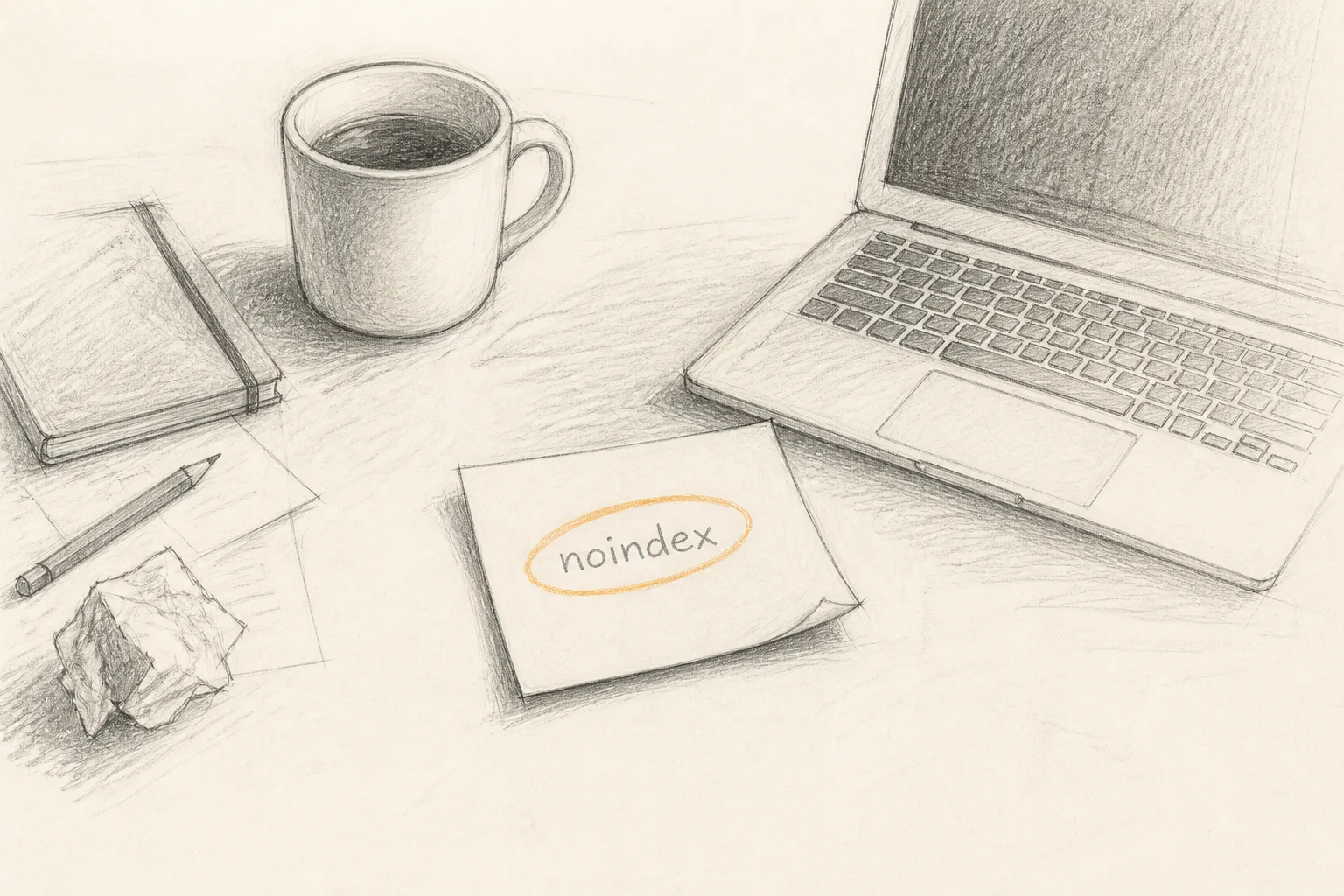
A leftover noindex directive is the most common cause worth checking first, because it is invisible to visitors and absolute to Google. A page carrying it can be crawled, read and understood, and Google will still keep it out of results because you asked it to.
It lives in one of two places:
A meta tag in the HTML head: <meta name="robots" content="noindex">, sometimes with nofollow beside it, or a Google-specific <meta name="googlebot" content="noindex">.
An HTTP response header: X-Robots-Tag: noindex. This one never appears in the HTML at all, which is why people miss it.
It gets left on for predictable reasons. A staging environment was set to discourage search engines and that setting shipped with the build. A page template was copied from a draft. WordPress has a "Discourage search engines from indexing this site" option under Settings, Reading, and it is easy to tick during development and forget. A hosting platform adds a noindex header to preview deployments, and the production domain is accidentally pointed at a preview.
How to check it
Open the page, then open its raw source (view source, not the browser's element inspector). The inspector shows the DOM after JavaScript has run; the raw source shows what the server sent. You want both to be clean.
Search the source for noindex.
Check the response headers. In your browser's developer tools, open the Network tab, reload, click the document request and read the response headers for X-Robots-Tag. From a terminal, running curl -I followed by the page's full address shows the same headers.
In Search Console, run URL Inspection on the page. If Google saw the directive, the page indexing detail says it was excluded by a noindex tag.
In the example, the Tallyroom homepage source is clean. The /features and /pricing source both contain <meta name="robots" content="noindex">. The maker built them from a layout duplicated from the staging site, and that layout carried the tag. That explains two of the five missing pages. The blog posts are clean, so something else is going on with them.
Is my robots.txt blocking Google?
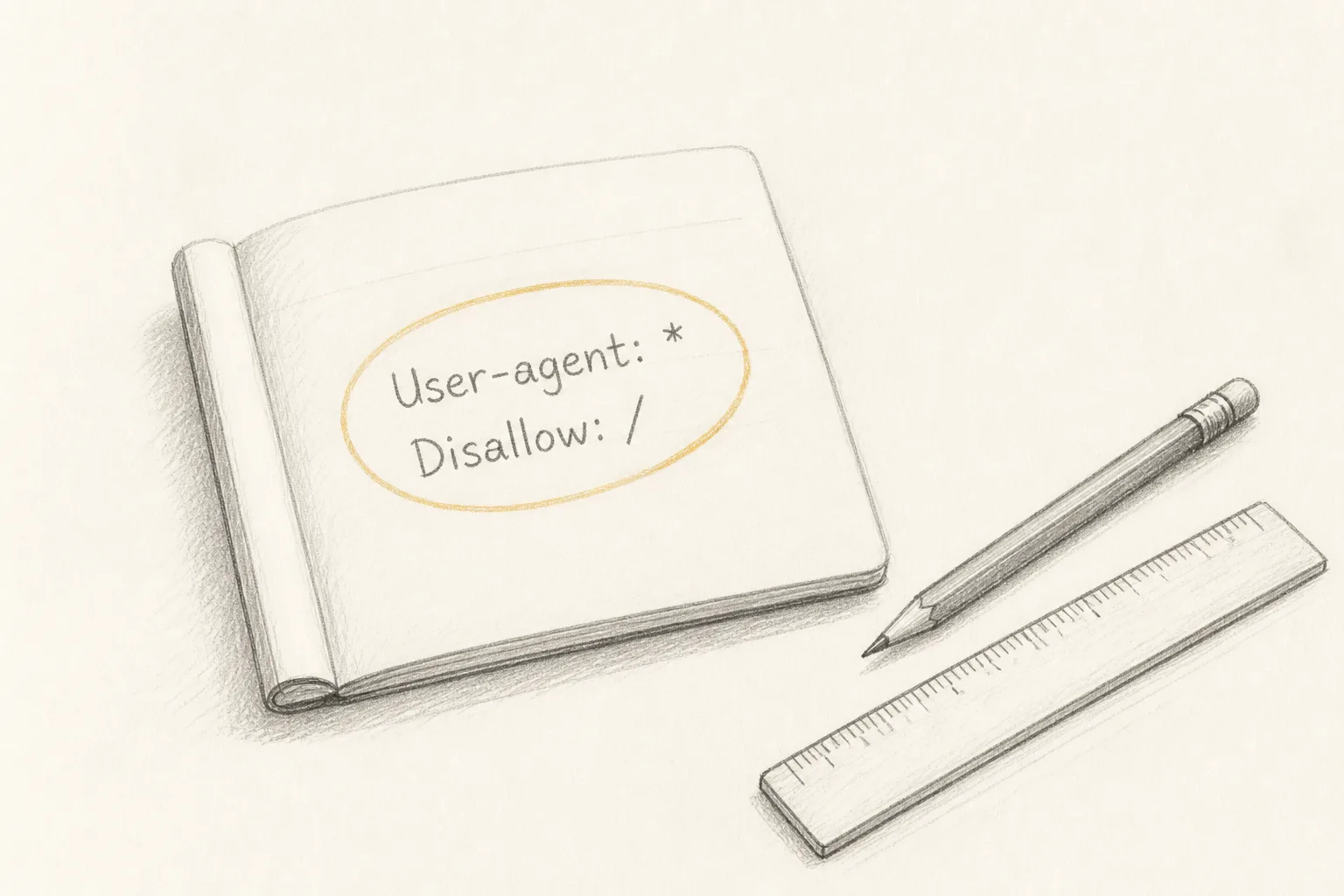
Open the robots.txt file at the root of your domain next. It takes seconds and can block an entire site with two lines:
User-agent: *
Disallow: /
That pair tells every compliant crawler to fetch nothing. It is a common staging default, and like the noindex tag it ships to production more often than anyone admits. Narrower rules cause narrower damage: Disallow: /blog/ hides the blog, and a rule blocking your JavaScript or CSS folders can stop Google rendering the page properly even though the HTML itself is allowed.
Two details catch people out:
robots.txt controls crawling, not indexing. A URL blocked in robots.txt can still appear in results, usually without a description, if other pages link to it. Search Console reports this as indexed though blocked by robots.txt.
robots.txt can hide your noindex. If you block a page in robots.txt and also add noindex, Google cannot fetch the page to read the noindex. When you want a page out of results, allow crawling and use noindex. When you want it in, remove both.
How to check it
Open /robots.txt in a browser. Read every Disallow line under User-agent: * and under any Googlebot group.
Confirm the file actually returns content. A robots.txt that times out or returns a server error can make Google hold off crawling the site.
In Search Console, the robots.txt report shows the version Google last fetched and any parse errors. URL Inspection also states whether crawling was allowed for a given page.
In the example, Tallyroom's robots.txt allows everything and lists a sitemap. That clears the blog posts of this cause and leaves them unexplained.
Why can Google not find my pages at all?
Google finds most pages by following links. A page nothing links to (an orphan page) may never be discovered, or may be discovered and put far down the crawl queue. On a new site with no links from other websites, your own internal links are almost the entire map Google has.
The failure is often not an absence of links but links Google cannot follow. Google follows <a href="/path"> elements. It does not reliably follow navigation built from buttons with click handlers, <div> elements that change the route in JavaScript, or links that only appear after someone opens a menu that is never rendered into the HTML.
How to check it
From your homepage, list every page you want found. Confirm each one is reachable through plain <a href> links, ideally within a click or two of the homepage.
In the raw source of your homepage, search for the path of each important page. If /blog/first-post appears nowhere in the served HTML, a crawler reading that HTML will not see a link to it.
Submit an XML sitemap in Search Console. A sitemap tells Google the URLs exist; it does not guarantee they will be crawled or indexed, but on a new site it shortens discovery.
In the example, the three Tallyroom blog posts are linked from a "Resources" dropdown. The dropdown is a button that renders its menu in JavaScript when clicked; in the served HTML there is no <a href> to any post. The sitemap exists but was generated before the blog launched, so it lists only the homepage, /features and /pricing. Google has no path to the posts. That is the third cause found, and it accounts for everything.
Can Google see content that only loads with JavaScript?
Google can render JavaScript, but rendering is a separate, later step from crawling, and anything that fails in that step is invisible. If your server sends an empty shell (a <div id="root"></div> and a script bundle) and all text, titles and links arrive only after the script runs, you are relying on that rendering step to succeed every time.
Things that commonly break it:
The page title and meta description are set in JavaScript and default to a placeholder, so every page looks identical.
Content loads from an API that is slow, rate-limited or blocked for crawlers.
Scripts or styles are disallowed in robots.txt.
A consent banner or login wall renders instead of the content.
The app returns HTTP 200 for routes that do not exist, so Google sees many thin, identical pages and may treat them as soft 404s.
It also matters beyond Google. Not every crawler renders JavaScript the way Google does, and answer engines that read your pages to cite them face the same problem with an empty shell. Server rendering or static generation for your marketing pages removes the question entirely.
How to check it
View the raw source of a key page. If the main headline and body text are not in it, you depend on rendering.
In Search Console, use URL Inspection, then test the live URL and view the tested page. Look at the rendered HTML and screenshot. If the screenshot shows a spinner or a blank area, Google sees the same.
Disable JavaScript in your browser and load the page. What remains is roughly what a non-rendering crawler gets.
In the example, Tallyroom's marketing pages are statically generated, so the text is in the source. The only JavaScript dependency that matters is the dropdown navigation already found above.
Has Google just not crawled my page yet?
Sometimes nothing is wrong. On a new site, Google may know a URL exists and simply not have fetched it, or have fetched it and not yet decided to index it. Search Console distinguishes the two in its page indexing report:
Status
What it means
What to do
Discovered, currently not indexed
Google knows the URL but has not crawled it yet
Strengthen internal links to it; keep it in the sitemap; wait
Crawled, currently not indexed
Google fetched it and chose not to index it for now
Improve what the page offers; make sure it is not a near duplicate of another page
Excluded by noindex tag
The page asked not to be indexed
Remove the directive if you want it indexed
Blocked by robots.txt
Crawling is disallowed
Edit robots.txt
Duplicate, Google chose a different canonical
Google indexed another URL in its place
Check canonical tags and duplicates
"Crawled, currently not indexed" is the status that frustrates people most, because there is no single tag to remove. On a new site with thin pages (a pricing table with no explanation, a features page that repeats the homepage), it often clears as the pages gain substance and links. Request indexing in URL Inspection once after a fix; repeating the request does not speed anything up.
What will Google Search Console show for a brand-new site?
Less than you expect, and not immediately. After you verify a new property, most reports need Google to have crawled and processed your pages before they fill in. The Performance report shows only searches where your pages actually appeared, so an empty chart on a new site is normal and tells you nothing about why.
What does work straight away is URL Inspection. It queries Google's index for one URL at a time and tells you whether that URL is on Google, when it was last crawled, whether crawling was allowed, whether a noindex was found, and which canonical Google selected. Its live test fetches the page now, so you can confirm a fix before Google recrawls.
What Search Console will not tell you:
Why you do not rank. It reports coverage and performance, not a verdict on competitiveness.
Pages it has never heard of. If a URL was never discovered, it cannot appear in the page indexing report. Orphan pages are missing, not flagged.
Problems outside Google. It says nothing about how answer engines read or cite your site.
Anything before verification. You need to verify ownership (a DNS record for a domain property is the most complete option) before any of it is available.
In the example, the Tallyroom maker verified the domain on launch day. Two weeks later the Performance report is nearly empty and the page indexing report lists only the homepage and the two noindex pages. The blog posts appear nowhere, which is itself the clue: Google never discovered them.
Why does my site show up with site: but not when I search its name?
Because indexing and ranking are separate. Your pages are in the index, but for your brand name Google may be showing other results it judges more relevant: a dictionary word, a bigger company with a similar name, or social profiles. In the same Google Search Console Help thread, the answer is direct: "Google may need more time/signals to understand the site or brand, especially if it is new."
The signals you control:
Put the product name in the homepage <title> and main heading, in plain text.
Make the name consistent everywhere: site, social profiles, app store listings, directories.
Add Organization structured data with your name, logo and profile links.
Earn mentions and links from pages that already rank, such as a launch post, a directory listing or a review, so the name has context outside your own domain.
A generic name ("Tally", "Relay", "Notes") takes longer than a distinct one, and no fix changes that quickly.
What other causes stop a page from being indexed?
If the five above come back clean, check these. Each is less common but decisive when present.
A canonical tag pointing somewhere else. A <link rel="canonical"> that points to the staging domain, to the homepage, or to a URL that redirects tells Google another page is the real one. Every page should normally point to its own production URL.
Wrong HTTP status codes. A page must return 200 to be indexed. Check for 404s, 500s and redirect chains. A page that redirects twice before resolving wastes crawl effort; one that loops is dropped.
Split hosts. The HTTP and HTTPS versions, and the www and bare-domain versions, should all resolve to one address with a single redirect. If both www and non-www serve the site, Google may pick the one you did not intend.
Bot protection blocking Googlebot. A firewall rule, a challenge page or a rate limit can serve crawlers a block page while you, logged in, see the site normally. URL Inspection's live test shows what Googlebot actually receives.
A password or login wall. Content behind authentication cannot be indexed. Some site builders keep a site password-protected until you publish on a paid plan.
Duplicate content. Near-identical pages (localised copies with the same text, filter URLs, tag archives) compete for the same slot, and Google picks one.
A manual action. Rare on a new site, but Search Console's Manual actions report says so if it applies.
How do I check all of these at once?
You can run every check above by hand, and the steps here are enough to do it without buying anything. The cost is time and consistency: it is easy to check the homepage thoroughly and miss that /pricing came from a different template, which is exactly what happened in the example.
A readiness scan does the reading for you across the site. On LaunchScaler's free readiness scan you paste your URL, with no account and no card, and it runs 156 checks across 6 of its 7 categories, including Search, where it looks at whether search engines can find, read and rank each page. Every check scores out of 100 and shows the evidence behind its verdict, so a failing result points at what it found rather than just saying something is wrong. The same pass also covers whether answer engines can read the page, which matters if you want to be cited by AI answers and not just listed in Google (the difference is covered in what Google has actually said about answer engine optimization).
In the example, the Tallyroom maker runs the scan after two weeks of guessing. The Search category flags the two pages carrying a noindex directive, with the evidence shown beside the verdict. The blog posts are a different matter: whether a scan surfaces an unreachable page depends on what it can crawl to, so the maker still confirms the missing <a href> links by hand, using the raw-source check above. The scan narrows the hunt; the manual steps close it.
If you want every check opened to its exact fix, plus the deeper rendered-UX and backlink findings and the AI visibility measurement (10 questions put to each of 7 answer engines), that is the full audit, $19 one time for one domain, with no subscription; the LaunchScaler pricing page sets out what each option includes. Paying changes how deep you see, not how you are scored. And no scan, free or paid, can make Google index or rank a page; it can only tell you what is in the way. For where automated checks stop and judgement starts, see what a free SEO scanner can tell you and exactly where it stops.
What order should I check things in?
Cheapest and most decisive first. Each step either finds the cause or rules it out permanently.
The checklist
Search site:yourdomain.com. Nothing returned: an indexing problem, continue. Pages returned: a ranking problem, skip to the brand-signal steps. Optional shortcut: run the free readiness scan now, with no account, to cover the automated checks in steps 2 to 6 (such as noindex, response headers and canonicals) in one pass, then use the manual steps to confirm anything it flags.
Open /robots.txt. Look for Disallow: / or rules blocking important folders or assets.
View source on your homepage and two inner pages. Search for noindex. Check each page built from a different template.
Check response headers for X-Robots-Tag on the same pages.
Check the canonical tag on each: it should point to the page's own production URL.
Check status codes and redirects: one redirect to one host, then 200.
Confirm internal links are plain <a href> links to every page you want found.
Confirm the text is in the raw HTML, or that Google's rendered view shows it.
Verify Search Console, submit a current sitemap, and run URL Inspection on each important page.
Fix, run a live test, request indexing once, and wait for the next crawl rather than resubmitting.
How the example ends. The Tallyroom maker removes the noindex tag from the shared layout, replaces the Resources dropdown with a menu rendered as real links in the HTML, adds a blog index page linked from the footer, and regenerates the sitemap to include all six URLs. URL Inspection's live test on /pricing now shows indexing allowed. They request indexing for /features, /pricing and the blog index, resubmit the sitemap, and leave it. What happens next is Google's decision on Google's timetable; what they have done is remove every reason for Google to say no.
How long does it take for a website to show up on Google?
There is no fixed time, and anyone quoting one is guessing. A new page on a site Google already crawls regularly can be picked up quickly; a brand-new domain with no links pointing to it takes longer, because Google has less reason to visit and less context about what it is. Submitting a sitemap and requesting indexing in URL Inspection helps Google discover the pages, but it does not put them at the front of a queue on demand. If weeks pass and URL Inspection still says the page is not on Google, stop waiting and work through the checklist, because a blocker is more likely than slowness.
How do I get my website to show up on Google?
Make it possible, then give Google reasons. Possible means crawlable and indexable: no noindex, no robots.txt block, a 200 status, a self-referencing canonical, text in the HTML, and plain links to every page. Reasons means pages that answer something specific, a verified Search Console property with a sitemap, and links from other sites that give Google a path in and context about what you are. The first half you can finish in an afternoon. The second half is ongoing.
Why is my website not popping up when I search for it?
Usually because what you are searching for is not what Google has indexed. Searching a product description ("simple timesheet app for freelancers") puts a new site against every established competitor, and it will not appear for a long time. Searching your exact brand name should work sooner, but only once Google has indexed the homepage and connected the name to it. Also check you are not looking at a personalised or location-skewed result: try a private window, and use site: to confirm indexing rather than scanning results by eye.
How do I make my business visible on Google search?
For a web product, visibility on Google comes from indexable pages that each answer one thing a buyer searches for, plus mentions and links from places that already rank. For a business with a physical location, a Google Business Profile is a separate step that controls how you appear in Maps and local results, and it is worth setting up alongside the website. In both cases, get indexing right first: no amount of promotion helps a page Google has been told to ignore.
What should I do first, today?
Run site:yourdomain.com and open your robots.txt, then view source on one inner page and search it for noindex. Those three checks take a few minutes and settle the most common causes. If all three come back clean, verify your domain in Search Console and run URL Inspection on the page you most want found; its verdict tells you which section above to read next.
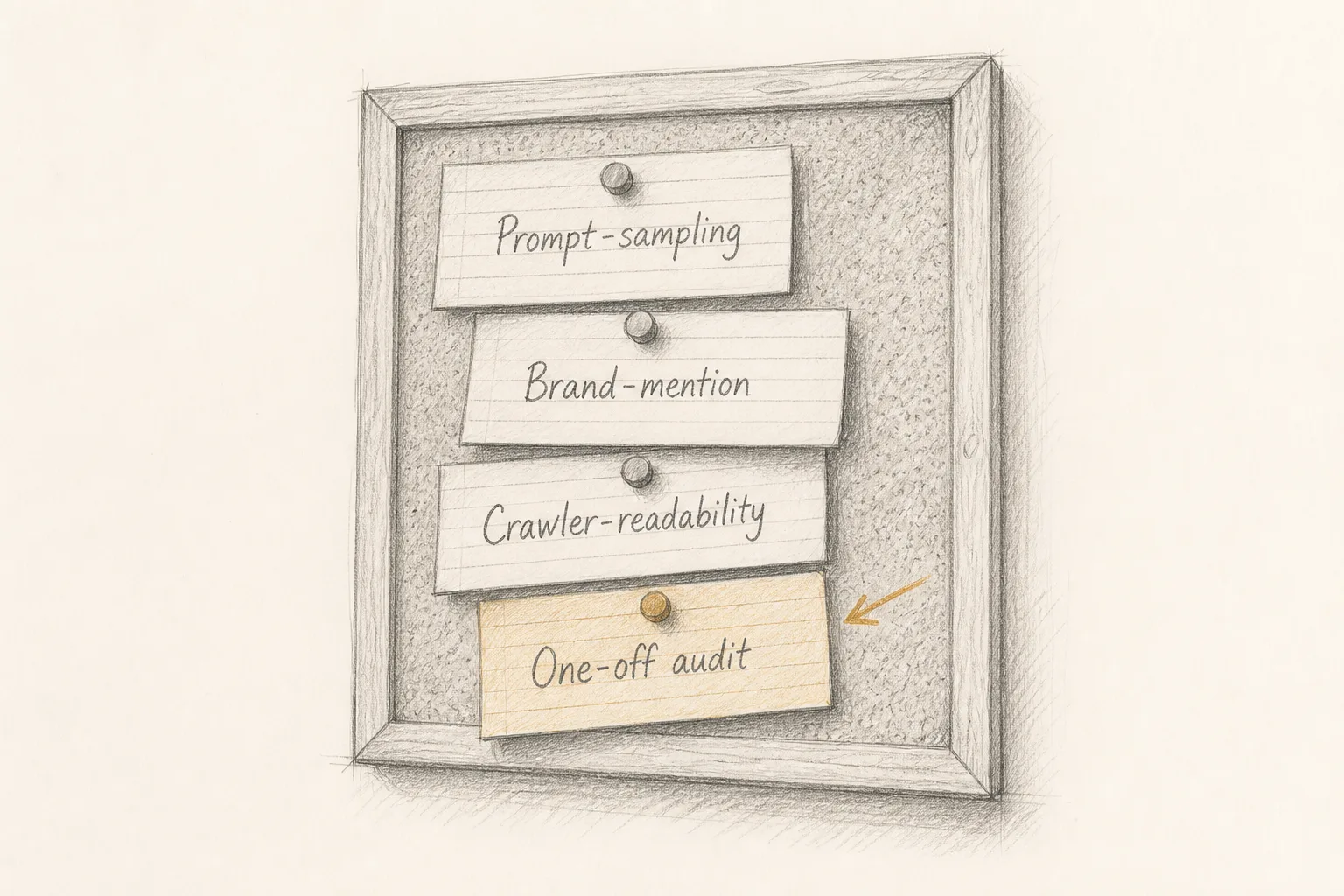
AI visibility tools measure four different things: answer share, brand mentions, crawler readability and one-off audits. Learn what each number counts and who it suits.
Answer engine optimization means being a page AI answers can find, read and cite. Google says it needs no special files or schema. Here is what actually matters.
A free SEO scanner checks whether crawlers can reach, read and trust your pages. Here is how to run one, read its evidence, and know where free checks stop.